



Platform Overview
BaseFortify is a vulnerability management and threat intelligence platform that helps organisations identify, understand, and manage security risks affecting their systems.
Thousands of vulnerabilities are published every month. The challenge is not finding vulnerability information, but knowing which issues apply to the software and devices you use.
BaseFortify connects your component inventory with known vulnerabilities, adds security context from trusted sources, and helps you decide what needs attention first.
Core Capabilities
Match applications, operating systems, and services to known CVEs. BaseFortify identifies vulnerabilities associated with your registered components, helping you focus on your own environment.
Use CVSS severity scores, EPSS exploit probability, and CISA's Known Exploited Vulnerabilities catalogue to assess urgency and prioritise remediation.
Explore vulnerability descriptions, affected technologies, weakness classifications, official references, and remediation guidance. A context-aware AI assistant can help explain technical details.
Track vulnerabilities affecting your components through defined statuses, from initial discovery to remediation and completion.
Follow cybersecurity news and emerging threats from selected security publishers. Security Radar organises articles by security topic, vendor, and product.
Public Intelligence and Your Environment
BaseFortify provides two complementary views of cybersecurity information.
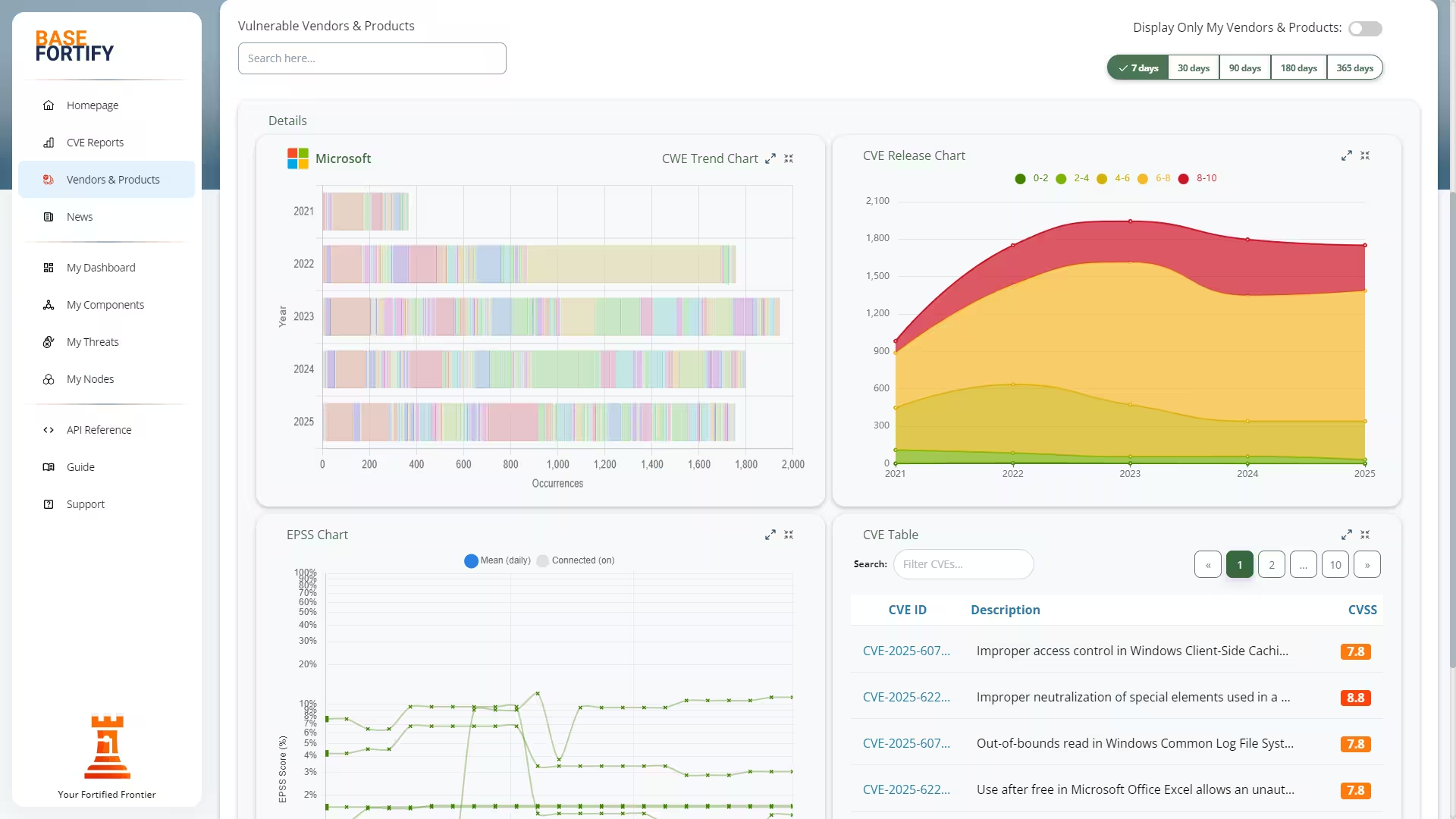
Public intelligence includes CVE reports, vulnerability statistics, and Security Radar articles. These resources help you explore the broader security landscape.
Your environment includes the nodes, components, and vulnerabilities associated with your account. BaseFortify uses your registered components to identify relevant threats and support remediation tracking.
A Security Radar article does not automatically indicate that your systems are vulnerable. A publicly listed CVE becomes a personalised threat when it is matched to your registered components.
Getting Started
New to BaseFortify? Continue with Getting Started under User Guides to learn how to register your components and begin tracking vulnerabilities.
How BaseFortify Works
BaseFortify starts with a simple question: What software and systems are you running?
By maintaining an inventory of your components, you can identify known vulnerabilities that may affect your environment without deploying intrusive scanners or installing monitoring agents.
1. Define Your Attack Surface
Your attack surface includes the operating systems, applications, services, and other software components used throughout your environment.
In BaseFortify, components can be organised under nodes, such as servers, workstations, or other logical device groups.
You can add components manually, paste collected software information, import CSV or JSON files, or use the REST API where available.
Keeping this inventory accurate helps improve vulnerability matching.
2. Match Components to Known Vulnerabilities
BaseFortify uses Common Platform Enumeration (CPE) information to associate registered software and products with known vulnerabilities.
When a relevant CVE is identified, BaseFortify can associate it with the affected component and create a threat record for your environment.
Where official CPE information is not yet available, BaseFortify can use provisional composite CPE matches to provide early-warning information.
These matches should be reviewed carefully until authoritative product information becomes available.
3. Enrich Vulnerability Information
BaseFortify combines CVE information with additional security context to support risk assessment.
| Source | What It Tells You |
|---|---|
| CVE | Identifies a publicly reported vulnerability. |
| CVSS | Describes technical severity and potential impact. |
| EPSS | Estimates exploitation probability over the next 30 days. |
| CISA KEV | Identifies vulnerabilities known to be exploited in the wild. |
| CWE | Classifies underlying software or hardware weaknesses. |
| References | Links to advisories, research, and supporting information. |
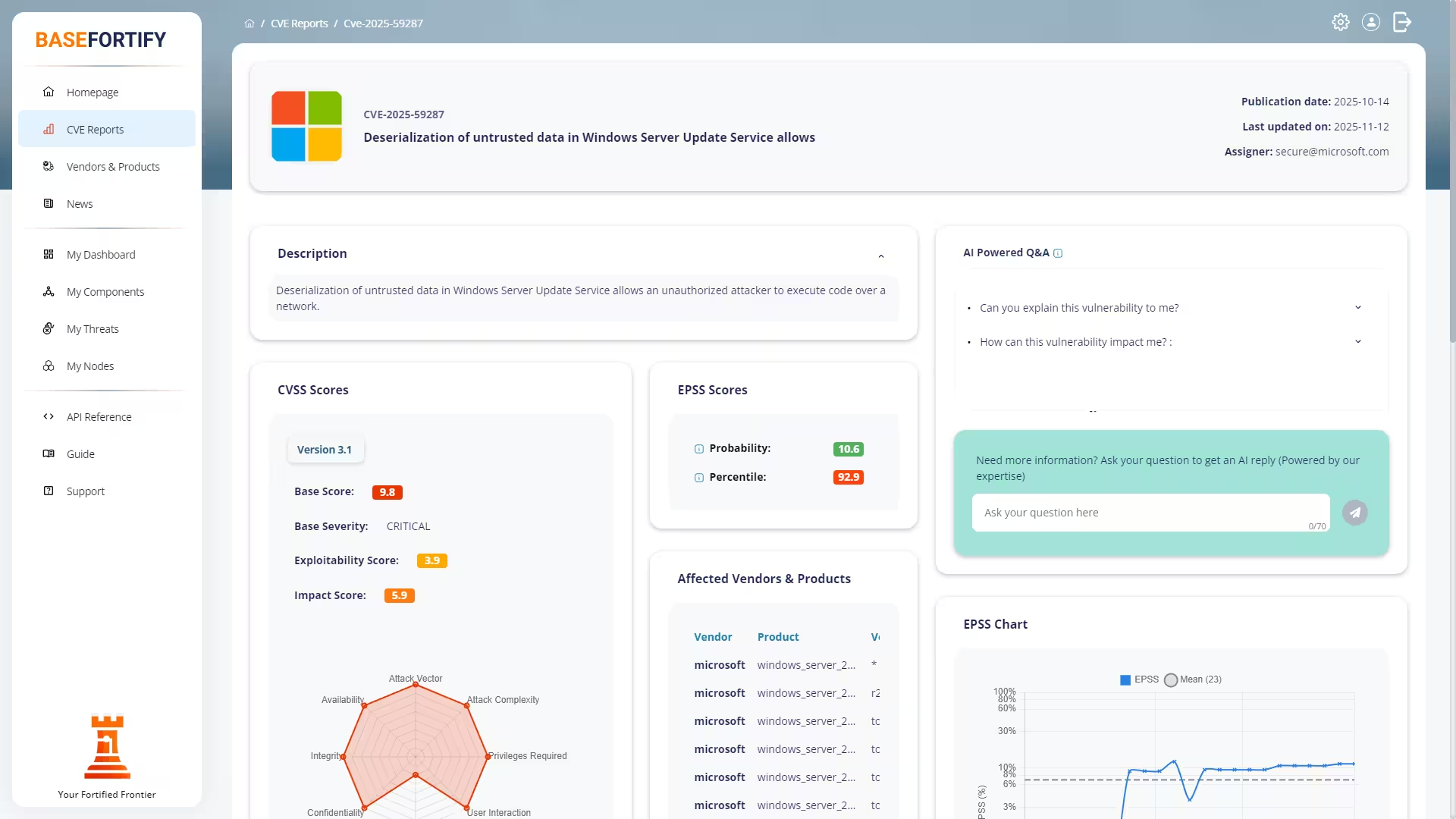
These indicators answer different questions. A high CVSS score does not necessarily mean exploitation is likely, while a vulnerability listed in CISA KEV deserves particular attention because exploitation has already been observed.
4. Prioritise and Track Threats
Once a vulnerability is associated with your components, you can review its severity, exploit probability, exploitation status, and remediation guidance.
BaseFortify supports a structured workflow:
New → Open → In Progress → Completed → Archived
Review threats by component or node, update their statuses, and use the available reporting views to monitor remediation work.
5. Stay Informed with Security Radar
Security Radar complements vulnerability matching by providing a broader view of cybersecurity developments.
It collects articles from selected security publishers and classifies them by topics, vendors, and products. You can search and filter the newsroom to explore emerging threats and newly disclosed vulnerabilities.
Security Radar articles are not automatically treated as confirmed vulnerabilities affecting your registered components.
6. Use AI Assistance When Needed
BaseFortify includes a context-aware AI assistant that can help explain vulnerability descriptions, discuss potential impact, and clarify remediation guidance.
AI-generated explanations support investigation and decision-making. Verify important recommendations against official advisories and your own environment.
Getting Started
BaseFortify helps you identify vulnerabilities affecting the software and operating systems in your environment.
To begin, you need to register the components you want to monitor.
You do not need to install a monitoring agent or deploy a vulnerability scanner.
Step 1 — Sign In
Sign in to your BaseFortify account and open My Components.
Select Add Components to begin building your software inventory.
Step 2 — Collect Your Software Information
BaseFortify supports several ways to register components:
- Manual entry: Search for and select individual applications or operating systems.
- Clipboard import: Paste a list of software collected from your environment.
- File import: Upload a supported CSV or JSON inventory.
- REST API: Synchronise components from another system, where your subscription permits API access.
For Windows, Linux, and macOS, BaseFortify provides collection commands to help gather installed software information.
Select the relevant operating system in the interface and follow the displayed instructions.
These commands collect inventory information for you to review and import. They do not install a persistent monitoring agent.
Step 3 — Register Your Components
Review the collected information and select the appropriate component type, such as an application or operating system.
Where applicable, assign components to a node representing the system or logical group they belong to.
Save the inventory to begin vulnerability matching.
Step 4 — Review Your Results
Once matching has processed your registered components, visit My Dashboard or My Threats to review relevant vulnerability information.
Some vulnerabilities may appear later as new CVE information or product mappings become available.
Keeping Your Inventory Current
An accurate inventory is essential for useful vulnerability results.
Review your registered components whenever software is installed, removed, or upgraded. If you use an automated integration, check that inventory updates are completing successfully.
Managing Nodes & Components
Nodes and components describe the systems and software you want BaseFortify to monitor.
Keeping this information organised makes it easier to understand where vulnerabilities may exist and which systems need attention.
Understanding Nodes
A node represents a system or logical group within your environment.
Examples include a production server, employee workstation, or collection of related systems.
Nodes help organise components and provide context when reviewing vulnerability matches.
Understanding Components
A component represents software or an operating system associated with your environment.
BaseFortify uses recognised vendor and product information, including CPE data where available, to identify relevant vulnerabilities.
Accurate product identification is important. Similar product names do not always represent the same software or version.
Adding Components
Open My Components and choose Add Components.
You can register individual components or import several at once using supported inventory formats.
Use the available search and selection controls to choose the correct vendor, product, and component type.
Where applicable, associate the component with the appropriate node.
Updating Your Inventory
Review your inventory when software changes.
- Add newly installed applications.
- Update product information after upgrades.
- Remove components that are no longer present.
- Review components with incorrect product identification.
Changes to your inventory can affect which vulnerabilities BaseFortify associates with your environment.
Reviewing Component Vulnerabilities
Use My Components to explore registered software and its associated vulnerability information.
You can also use My Threats to review matching vulnerabilities across your environment.
A vulnerability match indicates that registered product information corresponds to an affected product or version. It does not, by itself, establish that exploitation is possible in your specific configuration.
Good Inventory Practices
Use consistent node names, avoid unnecessary duplicate components, and review your inventory regularly.
Understanding Your Dashboard
My Dashboard provides an overview of the vulnerability information associated with your registered environment.
It helps you identify issues requiring attention without examining every component individually.
Reviewing Your Security Overview
After signing in, open My Dashboard.
Use the available summary information to understand your registered environment and the vulnerabilities currently associated with it.
The dashboard is a starting point for investigation rather than a substitute for reviewing individual vulnerability records.
Identifying Important Threats
When reviewing vulnerability information, consider several indicators together:
- CVSS: How severe the potential technical impact may be.
- EPSS: How likely exploitation is estimated to be over the next 30 days.
- CISA KEV: Whether the vulnerability is known to have been exploited.
- Affected components: Which registered software or systems may require investigation.
A vulnerability with a lower CVSS score can still deserve urgent attention if it is being actively exploited.
Investigating a Vulnerability
Select a relevant threat or CVE to examine the available details.
Review its description, affected products, severity indicators, references, and remediation guidance.
Use this information alongside your own knowledge of the affected system.
Moving from Overview to Action
The dashboard helps you identify where to investigate first.
Use My Threats for detailed vulnerability tracking and My Components to understand which software is associated with the findings.
Understanding Dashboard Data
Dashboard information depends on the components you have registered and the vulnerability intelligence currently available.
An incomplete inventory can lead to incomplete results. New or updated vulnerability records may also change the information displayed.
Understanding Threats
In BaseFortify, a threat is a vulnerability associated with one or more components in your registered environment.
My Threats helps you investigate these matches, prioritise remediation, and track progress.
Finding Your Threats
Open My Threats to review vulnerabilities associated with your components.
Use the available search and filtering controls to narrow the results.
You can also investigate vulnerabilities from My Dashboard or through individual components.
Understanding Threat Information
Each threat is associated with a CVE report containing available technical details and security context.
Important indicators include CVSS severity, EPSS exploit probability, CISA KEV status, affected products, and remediation references.
These indicators should be considered together rather than used as isolated measures of risk.
Threat Status Workflow
BaseFortify supports a structured lifecycle for managing vulnerability findings.
| Status | Meaning |
|---|---|
| New | A match has been identified but not yet reviewed. |
| Open | The threat has been acknowledged and requires attention. |
| In Progress | Investigation or remediation is underway. |
| Completed | Remediation has been completed. |
| Archived | The record has been moved out of routine active views. |
Statuses help organise work and communicate progress.
Marking a threat as completed records your workflow decision. It does not independently verify that the affected system has been patched or that the vulnerability is no longer exploitable.
Prioritising Remediation
Start by identifying vulnerabilities known to be exploited, issues with high exploitation probability, and vulnerabilities affecting important systems.
Consider available mitigations, the accessibility of the affected system, and potential business impact.
Not every vulnerability requires the same response.
Recording Progress
Update threat statuses as investigation and remediation proceed.
Where your workflow supports it, retain enough information to explain the action taken and any remaining risk.
Reviewing Completed Work
After remediation, confirm that the affected software or configuration has been updated appropriately.
Keep the component inventory current so future vulnerability matching reflects the actual environment.
Working with CVE Reports
BaseFortify publishes detailed reports about publicly identified vulnerabilities.
These reports help you understand what a vulnerability affects, how serious it may be, and which remediation options are available.
Understanding CVE Identifiers
A CVE identifier is a standard reference for a publicly disclosed vulnerability.
For example, an identifier such as CVE-2026-12345 refers to a specific vulnerability record.
A CVE identifier is not a severity rating and does not necessarily mean that the vulnerability has been exploited.
Reading a CVE Report
Depending on the available source information, a BaseFortify report may include:
- Vulnerability descriptions and affected products.
- CVSS severity information.
- EPSS exploit probability.
- CISA KEV status.
- CWE weakness classifications.
- References to official advisories and research.
- Explanations and remediation guidance.
Not every CVE has complete information immediately after publication.
Understanding CVSS
The Common Vulnerability Scoring System describes the technical severity and potential impact of a vulnerability.
BaseFortify supports available CVSS versions, including CVSS 4.0, 3.1, and 2.0.
A high CVSS score indicates potentially serious impact but does not necessarily indicate a high likelihood of exploitation.
Understanding EPSS
The Exploit Prediction Scoring System estimates the probability that a published vulnerability will be exploited in the wild within the next 30 days.
EPSS values are updated regularly and can change as new information becomes available.
EPSS is a prediction, not proof of exploitation.
Understanding CISA KEV
The Known Exploited Vulnerabilities catalogue identifies vulnerabilities for which exploitation in the wild has been documented.
KEV status is an important prioritisation signal, particularly when the affected product is present in your environment.
Understanding CWE
Common Weakness Enumeration identifies categories of weaknesses that can contribute to vulnerabilities.
CWE information can help explain the underlying technical problem, such as improper input validation or inadequate access controls.
Reviewing Remediation Guidance
Consult official vendor advisories and trusted references when deciding how to respond.
Remediation may involve installing an update, changing a configuration, applying a temporary mitigation, or removing an affected component.
Always consider whether the guidance applies to your installed product and version.
Using the AI Assistant
Where available, the context-aware AI assistant can explain technical terminology, summarise potential impact, and discuss remediation options.
Verify important recommendations against authoritative sources.
Notifications & Alerts
BaseFortify provides notification capabilities to help you remain informed about relevant vulnerability developments.
Notifications complement the dashboard and threat-management views by drawing attention to information that may require investigation.
Why Notifications Matter
New vulnerabilities and changes to existing vulnerability records can affect your registered components.
Regularly reviewing relevant developments helps you identify emerging risks and respond when appropriate.
Understanding Notification Information
Depending on the available notification features and your subscription, alerts may relate to vulnerability matches, important security developments, or other supported platform events.
An alert should be treated as a prompt for investigation rather than proof that a system has been compromised.
Reviewing an Alert
When you receive a vulnerability-related notification:
- Identify the CVE or affected component.
- Review the available CVSS, EPSS, and KEV information.
- Check whether the affected software and version are present.
- Consult vendor guidance for remediation or mitigation.
- Track any required action through My Threats.
Managing Notification Preferences
Use the notification settings available to your account to review supported delivery options and preferences.
The available channels and controls may depend on your subscription and the notification functionality currently enabled.
Avoiding Alert Fatigue
Prioritise alerts using exploit evidence, potential impact, and the importance of the affected systems.
Continue to review My Dashboard and My Threats regularly, even when you have not received a recent notification.
Using the AI Assistant
BaseFortify includes a context-aware AI assistant to help users understand vulnerability information.
The assistant is designed to explain technical details and support investigation. It does not replace security expertise, official vendor guidance, or independent verification.
Accessing AI Assistance
Open a supported CVE report and use the available AI assistance feature.
The assistant can help you explore the vulnerability information associated with that report.
What You Can Ask
Useful questions include:
- What does this vulnerability allow an attacker to do?
- Which products or versions are affected?
- What does the CVSS score tell me?
- How should I interpret the EPSS probability?
- Is this vulnerability listed in CISA KEV?
- What remediation or mitigation options are documented?
- How can I explain the potential impact to a non-technical colleague?
Understanding the Responses
The assistant uses the vulnerability context to provide explanations in natural language.
It may help clarify descriptions, technical terminology, potential impact, and remediation recommendations.
The quality of its answers depends on the information available for the vulnerability.
Limitations
AI-generated responses may be incomplete or incorrect.
The assistant cannot independently confirm that your system is vulnerable, that an exploit has succeeded, or that a particular mitigation is effective in your environment.
Use official advisories and verified technical evidence when making important decisions.
Protecting Sensitive Information
Avoid entering passwords, access tokens, private keys, or other confidential information into AI conversations.
Share only the information necessary to investigate your question.
Recommended Workflow
Begin with the CVE report, use AI assistance to clarify anything you do not understand, and verify important conclusions against the cited security references.
Use My Threats to manage remediation work affecting your registered components.
Using Security Radar
Security Radar is BaseFortify's cybersecurity news and intelligence service.
It brings together articles from selected security publishers and helps you follow vulnerability disclosures, emerging threats, and other important cybersecurity developments.
Exploring Security Radar
Open Security Radar from the public website navigation.
The newsroom displays published articles from supported sources, allowing you to explore recent cybersecurity developments in one place.
You do not need to register components to browse public Security Radar content.
Searching for Articles
Use the search controls to find articles related to a particular subject, vendor, product, or vulnerability.
Search terms help narrow the displayed results so you can focus on developments that interest you.
Filtering by Publisher
Security Radar includes articles from selected cybersecurity news sources.
Use publisher filters to focus on one or more sources. This can be useful when following a particular publication or comparing coverage of an emerging issue.
Filtering by Security Topic
Articles can be classified under general security topics, including:
- Ransomware
- Malware
- Phishing
- Data breaches
- Patch management
- Vulnerability exploitation
Use topic filters to focus on the types of developments most relevant to your interests.
Understanding Vendor and Product Classification
Security Radar automatically identifies recognised vendors and products mentioned in imported articles.
These classifications help organise news around technologies and suppliers.
Automated classification is based on available article content and recognised product information. It may not identify every relevant vendor or product.
A vendor or product classification does not necessarily mean that the technology is vulnerable.
Reading Articles and Sources
Review article titles, summaries, publication details, and available source links to understand the reported development.
For important security decisions, consult the original publisher and any linked official advisories.
News articles can provide early awareness, but technical details may change as an incident or vulnerability disclosure develops.
Security Radar and My Threats
Security Radar and My Threats serve different purposes.
Security Radar provides general cybersecurity news and situational awareness.
My Threats provides vulnerability findings associated with your registered components.
An article mentioning a product you use does not automatically create a threat record in your account.
Likewise, the absence of a Security Radar article does not mean that a product has no known vulnerabilities.
Staying Informed
Use Security Radar alongside BaseFortify's CVE reports and personalised vulnerability tracking.
Together, these resources help you understand both the broader cybersecurity landscape and the vulnerabilities potentially affecting your environment.
REST API Overview
BaseFortify provides a REST API that allows developers and organisations to integrate vulnerability management into their existing systems and workflows.
The API enables applications, scripts, and automation tools to interact with BaseFortify without requiring users to perform every operation through the web interface.
What Can You Do with the API?
Create, retrieve, update, and manage nodes representing systems or logical groups in your environment.
Maintain software and operating system inventories programmatically. Register components, update their information, and synchronise inventory data.
Retrieve vulnerabilities associated with registered components and manage supported threat records and remediation statuses.
Access supported vulnerability information to enrich internal dashboards, reporting systems, and security workflows.
Common Integration Scenarios
- Synchronise software inventories from asset management or CMDB systems.
- Integrate vulnerability information into security dashboards.
- Connect BaseFortify with ticketing and remediation workflows.
- Automate supported node and component management operations.
- Retrieve vulnerability information for internal reporting and analysis.
These integrations can reduce manual administration and help maintain a more accurate view of your environment.
Standards and Data Exchange
The BaseFortify API uses HTTPS and JSON for communication.
Authentication is based on OAuth 2.0, allowing applications to obtain access tokens and authenticate API requests.
Supported operations, access permissions, and available endpoints are defined by the API documentation.
API Availability
REST API access and available functionality may depend on your BaseFortify subscription and account permissions.
Some operations may require additional authorisation.
Getting Started
- Confirm that API access is available for your account.
- Configure the required OAuth client or credentials.
- Obtain an access token using a supported flow.
- Explore the available API endpoints.
- Test your integration before production use.
Authentication & Endpoints
The BaseFortify REST API uses OAuth 2.0 to authenticate applications and control access to protected resources.
OAuth allows supported integrations to obtain access tokens without including a user's password in every API request.
Authentication Overview
Most protected API operations require a valid OAuth access token.
After obtaining a token, the client includes it in the HTTP Authorization header:
Authorization: Bearer <access_token>The API validates the token and applies the relevant access permissions before processing the request.
OAuth 2.0
BaseFortify uses OAuth 2.0 as its authentication framework.
Depending on the supported client configuration, an integration may use an authorisation flow suitable for an interactive application or an automated service.
The exact supported flows and client registration process are described in the current API specification.
Access Tokens and Refresh Tokens
Access tokens provide temporary access to protected API resources.
Tokens have a limited lifetime and must be renewed or replaced when they expire.
Where supported, refresh tokens allow an application to obtain a new access token without repeating the complete authorisation process.
Applications should handle token expiration securely and avoid unnecessary authentication requests.
API Base URL
The currently documented API base URL is:
https://api.basefortify.eu/api/v1/Endpoint paths and supported operations may change as the API evolves. Consult the current API specification when implementing an integration.
Available API Resources
| Resource | Purpose |
|---|---|
| Authentication | OAuth authentication and token management. |
| Nodes | Manage registered systems and logical groups. |
| Components | Maintain software and operating system inventories. |
| Threats | Retrieve and manage environment-specific findings. |
| Profile | Access supported account and permission information. |
| Health | Check supported API service availability. |
Available operations depend on the API version and permissions granted to the client.
Example API Request
The following illustrates the general structure of an authenticated API request:
curl -X GET \
  "https://api.basefortify.eu/api/v1/<resource-path>" \
  -H "Authorization: Bearer YOUR_ACCESS_TOKEN" \
  -H "Accept: application/json"
Replace <resource-path>
with a valid endpoint from the API specification.
This example demonstrates request structure rather than a specific working endpoint.
Permissions and Access Control
Authentication establishes the identity of an API client or user. Authorisation determines which resources and operations that identity may access.
API clients must operate within their granted permissions.
An authenticated client should not be assumed to have unrestricted access to all BaseFortify data.
Security Recommendations
- Use HTTPS for all API communication.
- Store client secrets and access tokens securely.
- Never include credentials in public repositories or logs.
- Request only the permissions your integration requires.
- Handle expired or revoked tokens appropriately.
- Validate API responses and handle errors safely.
- Test write and delete operations before production use.
API Specification
BaseFortify provides API documentation describing supported endpoints, request parameters, authentication requirements, and response formats.
The previously documented OpenAPI specification is available at:
The specification location and endpoint definitions should be confirmed following the API refactoring.
For integration assistance, contact support@axxemble.nl .
Model Context Protocol (MCP) Planned
Status: Planned — Not Yet Publicly Available
BaseFortify is developing support for the Model Context Protocol (MCP), an open standard that enables compatible AI assistants and applications to interact with external tools and services.
The planned MCP interface will allow authorised AI clients to work with BaseFortify's vulnerability management capabilities through structured tools.
What Is MCP?
The Model Context Protocol provides a standard way for AI applications to discover and use capabilities exposed by external systems.
Instead of relying entirely on custom integrations, compatible AI clients can use MCP tools to retrieve information and perform supported operations.
For BaseFortify, this creates opportunities to combine vulnerability intelligence with AI-assisted investigation and operational workflows.
Planned Capabilities
The MCP interface is intended to support the full range of Create, Read, Update, and Delete (CRUD) operations for appropriate BaseFortify resources.
| Operation | Intended Capability |
|---|---|
| Create | Register nodes, add components, and create supported records. |
| Read | Retrieve nodes, components, threat records, and vulnerability intelligence. |
| Update | Modify supported records, maintain inventories, and update threat or remediation statuses. |
| Delete | Remove supported customer-managed records, subject to permissions and safeguards. |
The availability of individual operations will depend on the resource type, permissions granted to the client, and final implementation.
Authoritative vulnerability intelligence, such as official CVE records, is not intended to become freely editable through MCP.
Potential Use Cases
Ask a compatible AI assistant to retrieve vulnerability information and explain its technical significance.
Retrieve registered nodes and components to help identify systems associated with particular vulnerabilities.
Use authorised MCP operations to create, update, or remove supported inventory records.
Review vulnerability findings, investigate affected components, and update supported threat-management records.
Connect BaseFortify to compatible AI applications that combine vulnerability intelligence with other authorised tools and information sources.
Security and Access Control
MCP introduces additional considerations because AI applications may initiate operations on behalf of users.
The planned interface will be designed around controlled access rather than unrestricted execution.
Security objectives include:
- Authentication of MCP clients.
- Authorisation for individual tools and operations.
- Enforcement of user and account permissions.
- Isolation of customer data.
- Audit logging of security-relevant operations.
- Additional safeguards for sensitive or destructive actions.
MCP will not provide a way to bypass permissions enforced elsewhere in BaseFortify.
MCP and the REST API
The REST API and MCP are intended to complement one another.
REST API: Designed for conventional software integrations, scripts, services, and automation workflows using HTTP requests and structured JSON responses.
MCP: Designed for compatible AI clients that discover and invoke exposed tools through a standard protocol.
Both interfaces are intended to operate within BaseFortify's authentication and authorisation framework.
Availability and Documentation
The MCP interface is under development and is not currently available as a public BaseFortify integration.
Supported tools, compatible clients, authentication requirements, deployment options, and technical configuration instructions will be documented closer to release.
The capabilities described here represent the intended direction of development and may change before general availability.
Getting Help
BaseFortify provides several ways to obtain assistance with the platform, report problems, and ask questions about its features.
Whether you need help managing components, understanding vulnerability information, or resolving an account issue, our support channels can help you find the appropriate next step.
In-App Support Chat
When using BaseFortify, you can contact our support team through the integrated chat feature.
Chat is useful for general questions, assistance with platform features, and guidance on common tasks.
Depending on availability, your message may not receive an immediate response.
For issues requiring additional investigation, a support ticket may be more appropriate.
Support Tickets
Support tickets provide a structured way to report problems that require investigation or follow-up.
A ticket can help you describe an issue, provide relevant details, and follow its progress through the available resolution statuses.
When submitting a ticket, include:
- A clear description of the problem.
- The BaseFortify feature or page involved.
- Steps needed to reproduce the issue, where applicable.
- Relevant error messages.
- The approximate time the problem occurred.
Screenshots can be helpful when they do not expose confidential information.
Avoid including passwords, authentication tokens, private keys, or other sensitive credentials in support requests.
Contacting Support by Email
You can contact the BaseFortify support team directly:
Email is useful when you cannot access the platform, need assistance with your account, or prefer to communicate outside the application.
When contacting support, use the email address associated with your BaseFortify account where possible.
For security reasons, the support team may need to verify your identity before making account-related changes.
Reporting a Security Issue
If you discover a potential security vulnerability affecting BaseFortify itself, please use the security reporting instructions published on our website.
Security reports should include enough technical information to help us investigate the issue safely.
Avoid publicly disclosing sensitive vulnerability details before the issue has been reviewed.
Before Contacting Support
You may be able to resolve common questions using the Documentation Center.
The User Guides explain how to register components, review vulnerabilities, manage threats, use Security Radar, and work with the AI assistant.
For integration questions, consult the Integrations & API documentation.
If the available documentation does not answer your question, contact support using one of the channels described above.
Account & Authentication
BaseFortify uses account authentication and security controls to protect access to your vulnerability management information.
This guide explains how to manage common sign-in issues, recover access to your account, and obtain assistance when additional verification is required.
Signing In
Sign in using your registered BaseFortify account credentials.
Depending on your account configuration, additional authentication steps may be required.
If you cannot sign in, first check that you are using the correct account details.
Avoid repeatedly submitting incorrect credentials, as security protections may temporarily restrict further attempts.
Forgotten Password
If you have forgotten your password, use the password recovery option on the BaseFortify sign-in page.
Follow the instructions provided to request a password reset.
For security reasons, password recovery instructions are sent through the supported account recovery process.
If you do not receive the expected message, check your spam or junk folder and confirm that you are using the correct email address.
If the problem continues, contact BaseFortify support.
Two-Factor Authentication
Two-factor authentication (2FA) adds an additional verification step to the sign-in process.
When enabled, BaseFortify may require a time-based one-time password (TOTP) generated by a compatible authenticator application.
This helps protect your account even if your password becomes known to someone else.
Setting Up an Authenticator
When enrolling in two-factor authentication, follow the instructions displayed in your account settings.
Typically, this involves scanning a QR code or entering a setup key into a compatible authenticator application.
You will then be asked to provide a verification code to confirm that the authenticator has been configured correctly.
Complete the confirmation process before relying on the new authenticator for future sign-ins.
Problems with Verification Codes
If an authenticator code is rejected:
- Confirm that you are using the correct authenticator entry.
- Check that your device's date and time are accurate.
- Wait for a new code and try again.
- Make sure you are not using an expired code.
If you still cannot complete verification, use the available account recovery process.
Lost Access to Your Authenticator
If you lose access to your authenticator application or device, contact BaseFortify support for assistance.
For security reasons, support may require additional identity verification before authorising recovery.
Recovery procedures are designed to prevent unauthorised access to your account.
The availability of recovery options depends on the account's security configuration and verification requirements in effect.
Account Security Recommendations
- Use a strong, unique password.
- Enable two-factor authentication when available.
- Protect access to your email account.
- Never share authenticator codes or recovery credentials.
- Avoid entering credentials into links from untrusted messages.
- Contact support if you suspect unauthorised access.
Suspected Account Compromise
If you believe someone else has gained access to your account, change your password as soon as you can safely do so.
Review your authentication settings and contact support if you notice unexpected account activity or cannot regain control.
If your email account may also be compromised, secure it separately.
Getting Additional Assistance
If you cannot recover access using the available self-service options, contact:
Explain the problem and provide the email address associated with your account.
Do not include your password, authenticator codes, or other authentication secrets in your message.